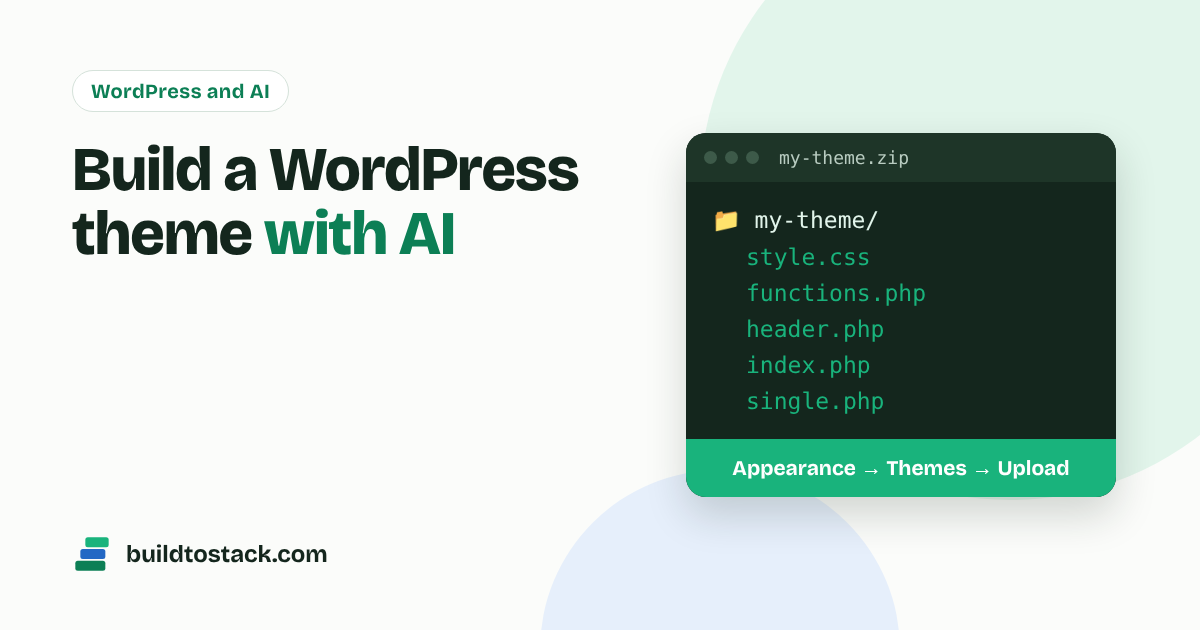
You can build a custom WordPress theme without writing code by describing your site to an AI assistant like Claude, downloading the files it makes as a zip, and uploading that zip in WordPress. The whole process takes an afternoon.
This guide shows the exact steps, a prompt you can copy, and how to fix things when they go wrong.
Why build your own theme?
- Speed: a theme built for one site carries no extra features, so pages load faster.
- A unique look: your site won’t look like thousands of others using the same template.
- No page builder: fewer plugins, fewer updates, fewer things to break.
- Low cost: you skip paying for premium themes.
The trade-off: you, not a theme company, are responsible for updates. Keep your theme simple and you’ll rarely need to change it.
What a WordPress theme actually is
A theme is a folder of files that controls how your site looks. WordPress needs only two files for a theme to work: style.css, which holds the theme’s name and design, and index.php, which shows your content. Most themes add a few more:
| File | What it does |
|---|---|
style.css | Theme name at the top, plus all the colours, fonts and layout |
functions.php | Menus, featured images, widgets and other features |
header.php / footer.php | The top and bottom of every page |
index.php | The fallback template for lists of posts |
single.php / page.php | A single post and a single page |
screenshot.png | The preview picture in Appearance > Themes |
You don’t need to write any of these. You need to know they exist so you can check the AI made them all.
Step 1: Plan your site in plain words
Before opening Claude, write down:
- your site name and what it’s about;
- the pages you need (Home, Blog, About, Contact);
- your colours, or a feeling: “light and clean, green accents”;
- what the homepage should show: a headline, latest posts, an email signup;
- sites whose style you like, described in words.
The clearer the plan, the better the first version.
Step 2: Give Claude a detailed prompt
Go to claude.ai, start a new chat and paste a prompt like this, changed to fit your site:
Build a complete classic WordPress theme for my blog “GreenGrow”, about indoor plants for beginners. Style: light and clean, white background, dark green (#1F6F4A) accents, rounded cards, modern sans-serif font. Pages: homepage with a hero headline and button, latest 6 posts as cards and a newsletter box; single post template with reading time and related posts; page template; archive; search; 404. Include a primary and footer menu, featured images, a widget area, a mobile menu, and a footer with copyright. Make it fast, accessible and mobile-first, with no page builder and no jQuery. Follow WordPress coding standards and escape all output. Include style.css with a proper theme header, functions.php, header.php, footer.php, index.php, single.php, page.php, archive.php, search.php, 404.php and a screenshot.png. Give me everything as one zip file I can upload to WordPress.
Then ask for changes in follow-up messages: “make the header sticky”, “add a dark footer”, “show the category above each post title”. Small, specific requests work best.
Step 3: Download the theme zip
Claude can create files you download, so ask it to package the theme as a zip and click the download link.
Two checks before uploading:
- Don’t unzip it. WordPress wants the zip itself.
- Check the folder structure. Opening the zip should show one folder (for example
greengrow) with the theme files inside it.
If you can’t get a zip, ask Claude to show each file in its own code block. Save each one with the exact file name into a folder, then zip that folder yourself.
Step 4: Upload the theme to WordPress
- In your dashboard, go to Appearance > Themes.
- Click Add New Theme, then Upload Theme.
- Choose your zip file and click Install Now.
- Click Activate.
If WordPress says the theme is already installed, choose Replace current with uploaded to update it.
Step 5: Set up menus and settings
- Appearance > Menus (or Customize > Menus): create your menu and assign it to the primary location.
- Settings > Reading: choose a static homepage if your theme has a custom front page.
- Settings > Permalinks: choose Post name for clean URLs.
- Appearance > Customize: upload your logo and site icon.
Step 6: Test before you go live
- Open the site on your phone and a laptop.
- Check a post, a page, a category, search and a missing page (404).
- Run your homepage through PageSpeed Insights.
- Install the free Theme Check plugin to scan for common theme problems, then remove it.
When something breaks
“There has been a critical error on this website” usually means a PHP error.
- Copy the error message (WordPress usually emails the admin with details).
- Paste it into the same Claude chat and ask: “Fix this error and give me the updated zip.”
- Upload the new zip and replace the old theme.
If you’re locked out, use your host’s file manager to rename the theme’s folder in wp-content/themes/. WordPress then switches to a default theme and you can log in again.
Stay safe
- Back up first. Take a full backup or use your host’s staging site before switching themes.
- Keep a default theme installed, like Twenty Twenty-Five, as a fallback.
- Ask for security. Tell Claude to escape output, sanitise input and use nonces on forms.
- Keep versions. Save each zip with a version number, so you can go back.
What’s next
A theme is only the frame. Rankings come from content, so read SEO for Beginners next. The free Build to Stack starter kit includes this AI theme method with screenshots, plus the plugins every new site needs. Get it on the homepage.
Sources
Facts and figures in the posts were checked against these pages on 1 November 2026. Recheck commission rates and fees before republishing, as they change.
- Google: Updates to how publishers monetize with AdSense: publishers keep roughly 68%, move to per-impression payments
- Amazon Associates commission rates: 1% to 10% by category
- Empire Flippers: switching to annual multiples: typical 2.3x and premium 2.6x yearly profit, from 8 September 2026
- Flippa: fees and escrow: escrow through Escrow.com
- Motion Invest: buying a site: content sites, deposit rules
- Google SEO Starter Guide
- Google spam policies and March 2024 announcement: scaled content abuse
- Google: qualify outbound links: rel=”sponsored”
- FTC Endorsement Guides FAQ
- Anthropic: create and edit files with Claude